 Change
the Configuration Ports Nginx and
SSL Certificate
Change
the Configuration Ports Nginx and
SSL Certificate < Prev. |
Next > |
About
the SSL Encryption Change
the Configuration Ports Nginx and
SSL Certificate
Azuracast natively offers a dedicated webpage with a plain HTTP connection for its radio player, which can be visited in a separate window, apart from other websites. The problem may be that the browser will alert that your connection is not secure, and there might even be some other browsing restrictions implemented. See the screenshot below.

An even bigger issue is that you cannot embed the AzuraCast player widget in other HTTPS webpages (which are the standard today) and make it visible and functional.
Below is the AzuraCast widget embedded in this web page, which is served via HTTPS (SSL) through the solution that I am documenting in this chapter.
So, if you want your listeners to visit your radio station without browser warnings, and if you want to embed the AzuraCast player in webpages (like above), you should install the free Let’s Encrypt SSL for your subdomain.
Note: The prerequisite is that you’ve already owned a web domain (like spiritus.ro) and you’ve made a DNS A record in the Zone Editor (a subdomain, like radio.spiritus.ro) pointing to your station’s IP.
I asked Gemini AI to give me a solution, and we tried hard together, through trial and error, until we managed to get things working. And here are the steps that you should also take to succeed:
Follow The > docker.sh Method for Ampere ARM-based Shapes
Go to the AzuraCast directory:
If the nano editor is not installed on your system, first run:
Edit the configuration azuracast.env file:
Ensure the following lines exist (if not, paste them to the bottom of the file):
Save and close the file. Ctrl+x, y, Enter.
Finally, you should access AzuraCast using these ports. Type in the full HTTP address, like so:
http://92.5.239.117
Troubleshooting: If you get the message "The server at 92.5.239.117 is taking too long to respond", you have a network problem, and you should check if the VCN security list is also present in the Subnet.
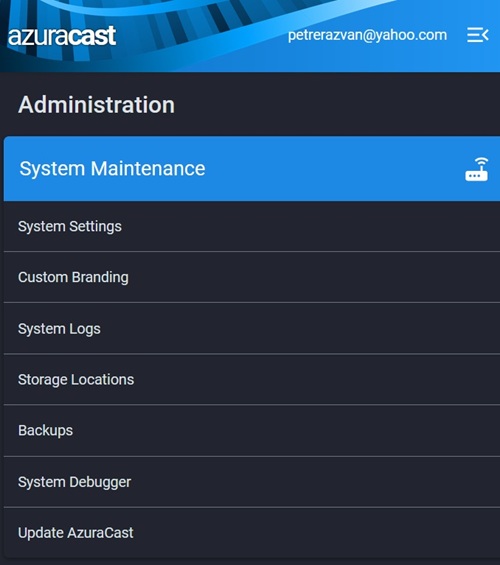
When you open the Azuracast First-Time Setup, during the setup wizard, or going to Administration > System Settings, make sure you have the following all set:
• Set Site Base URL to: https://radio.spiritus.ro (replace with your domain/subdomain)
• Enable: Use Web Proxy for Radio Streams
• Enable: Prefer Browser URL (Web Proxy) for All Communications

Configure the Domain & SSL
We will now use the AzuraCast Setup Tool to link the domain name (radio.spiritus.ro) and trigger the automatic SSL certificate request.
Troubleshooting: If the installation gets frozen at the message "Waiting for database (MariaDB) to become available...", this is because the aborted setup left the database in a bad state. But be pacient to finish its job. If it really gets frozen, then stop AzuraCast:
Then remove all the AzuraCast files:
Run again:
If you get the message "Could not open input file: cli.php", update the Docker script:
Now, the command should work:
In my case, at this point, AzuraCast GUI was still not reachable by typing http://92.5.239.117 in the browser, although it should have been.
Troubleshooting: I tried my mobile phone's browser, after disconnecting it from Wi-Fi, and, alas, I could see the AzuraCast web interface! That was a crucial test that isolated the connectivity issue to the local computer cache.
I opened a Terminal (admin) session in a new window and executed: ipconfig
/flushdns
That Windows command clears the local DNS resolver cache, forcing your computer to get fresh, up-to-date information from a DNS server the next time it needs to find a website's IP address. This is often used in troubleshooting connectivity issues.
Explanation: After changing the AzuraCast configuration file (azuracast.env and
docker-compose.yml) the DNS record became outdated, and now has
been refreshed.
Still, you may also need to flush the browser's internal cache, like so:
For Google Chrome / Edge / Brave:
Open a new tab and
type: chrome://net-internals/#hsts (or edge://net-internals/#hsts)
Scroll
to the bottom to "Delete domain security policies".
Type
radio.spiritus.ro in the box and click Delete.
Now, go back to your site
and do a Hard Refresh: Press Ctrl + F5 .
For Firefox:
Close all tabs for your radio site.
Press Ctrl + Shift + H to open your History.
Find your radio site,
Right-click on it, and select "Forget About This Site"
Warning: This will clear cookies and
saved passwords for just that specific site.
Re-open the site.
Finally, run this command:
You will get the following message, which is good news!
"LetsEncrypt is now managed from within the web interface. You can manage it via the 'Administration' panel, then 'System Settings'. Under 'Services', you will find the LetsEncrypt settings."
That means AzuraCast moved Let's Encrypt management to the web UI for standard Docker installs.
Now, after opening the AzuraCast GUI in your browser, go to Administration > System Maintenance > System Settings > Services tab. At "LetsEncrypt" fill in your subdomain and email address, Save, and then click "Generate Certificate".
And that completes the process successfully. The SSL certificates will renew themselves.
*
My AzuraCast interface is now available in either plain or SSL HTTP:
Unencrypted connection: http://radio.spiritus.ro
Encrypted connection using the Let's Encrypt certificate: https://radio.spiritus.ro
My radio station's public webpage is also accessible at either:
http://92.5.239.117/public/radio_spiritus
https://radio.spiritus.ro/public/radio_spiritus
NOTE: The RTMP protocol used to stream to YouTube is not based on HTTP/HTTPS. The connection between your server and YouTube is secure in other ways, so an SSL/TLS certificate isn't necessary for the video stream itself.
Next chapter: Azuracast Interface >