YouTube Streaming
Prerequisites  The
FFmpeg Script The
Metadata Update Script Make
Both Scripts Executable Create
a
The
FFmpeg Script The
Metadata Update Script Make
Both Scripts Executable Create
a systemd Service for the FFmpeg Script Create
a systemd Service for the Metadata Update Script Explanation
of the Daemon Services Verify the Scripts Are Running
This was the most complex part of this project. I intended to take the radio
signal and broadcast it on YouTube to a wider audience. That’s simple with an
FFmpeg script. I wanted to send the metadata of the song, including the album
art (a specific image) for the current song playing, and its lyrics. That seemed
a piece of cake for ChatGPT and Gemini, but making it all work was another
thing.
I spent a few days with different scripts that were said to make that
job. Sometimes they worked, other times nothing worked at all. Troubleshooting
is a difficult task, by simply believing what the AI suggests so confidently! 😊
Finally, I
managed to make the script work, but with a twist: YouTube doesn’t show the
image for the current song, and cannot even display a single static image for
the radio station. It’s frustrating, but that’s the case.
At least, the song
is heard, the screen is colored, and the metadata (Title, Author, Album, and
Genre) is displayed on screen. I also tried with FFmpeg filters for gradient
color, and with displaying lyrics in metadata, but that was too complicated
altogether and failed.
The problem with the image doesn’t belong to the
script, but to how YouTube processes the RTMP signal, because the RTMP protocol
used for streaming doesn't support metadata in a standardized way. However, you
can use a tool like FFmpeg to overlay this information as text on a static video
image, effectively embedding the metadata visually into the stream.
In
conclusion, the task is done, as you can
check for yourself on
YouTube.
And here is how it was done.
I made two scripts, one that sends the radio
signal to YouTube and the other that updates the song metadata
when the song changes. I also made a service for each script that automates
restarting in case of VM reboot or in case of troubleshooting.
There are a few programs that must be installed (if not already installed),
which are nano (the text editor), ffmpeg,
curl, jq. Use this single command that will check and install the newest versions:
sudo apt install
nano ffmpeg jq curl -y
Firstly, create the bin directory inside the local user
directory to put all your scripts there:
mkdir /home/ubuntu/bin
Gather
the configuration information
1. Get your YouTube RTMP URL and stream key
Navigate to your YouTube Studio and find in the top-right
menu Create >"Go Live" section. The Stream key
will be listed there in the Stream settings, in hidden characters. It looks
something like this when you paste it: abcd-1234-efgh-5678-ij90
2. Get your
Azuracast stream URL
In your AzuraCast dashboard, find the public URL for your
audio stream. Look in Profile > Streams > Local streams. It will look like
this (notice the radio's
short name)
http://92.5.239.117/listen/radio_spiritus/radio.mp3

FFmpeg is the
tool you'll use to take your audio stream and package it into a video format for
YouTube Live. When you run the FFmpeg command, that's where the magic happens!
Install FFmpeg:
sudo apt update
sudo apt install ffmpeg -y
Create the start_stream.sh script
If the Nano text editor isn't installed yet, install it now:
sudo
apt update
sudo apt install nano -y
Create a new file named
start_stream.sh in the /home/ubuntu/bin directory:
nano
/home/ubuntu/bin/start_stream.sh
Paste the code given below into the
file, replacing the placeholders <MyYTurl>
and <MyIP> with your own.
You may first copy/paste and edit in Notepad, for example.
If you want to edit directly inside Nano, use the arrow keys to navigate, and the Delete
or Backspace key to erase characters. To delete blocks of text,
use Alt+A to mark the first character and the arrow keys to select the lines and
characters. Then use Ctrl+K to cut text.
Save and exit Nano (see the messages displayed): Press Ctrl+O →
Enter → Ctrl+X. Or Ctrl+X → Y → Enter
NOTE: When copying/pasting from an Office Word document, be
aware that some errors may occur:
- Hyphens (-) might have been changed into
dashes (–).
- Blank spaces exist where they should not in a Linux script. In
this example below, two blank spaces after the backslash (\) (which is a “command
continues on the next line” symbol) are not allowed and therefore automatically
colored in green by the Nano editor. Of course, you should delete them, or the
script will not work.
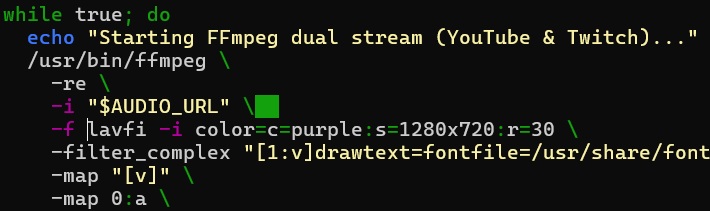
Here is the start_stream.sh code. Copy this code, paste it in
Notepad or other simple text editor, replace <MyYTurl>
and <MyIP>, then paste
the whole edited script into Nano editor. (You can alternatively
replace <MyIP> with this internal URL: localhost:8000
or 127.0.0.1)
Or edit it directly into Nano. Also, replace radio_spiritus
with your real short name:
#!/bin/bash
# Configuration
FFMPEG_DIR="/home/ubuntu/bin"
YOUTUBE_URL="rtmp://a.rtmp.youtube.com/live2/<MyYTurl>"
# Replace with your YouTube stream key
AUDIO_URL="http://<MyIP>/listen/radio_spiritus/radio.mp3"
# Replace with your AzuraCast IP
while true; do
echo "Starting FFmpeg dual stream (YouTube)..."
/usr/bin/ffmpeg -hide_banner -loglevel error \
-reconnect 1 -reconnect_at_eof 1 -reconnect_streamed 1 -reconnect_delay_max
2000 \
-re \
-i "$AUDIO_URL" \
-f lavfi -i
color=c=purple:s=1280x720:r=30 \
-filter_complex
"[1:v]drawtext=fontfile=/usr/share/fonts/truetype/dejavu/DejaVuSans-Bold.ttf:fontcolor=white:fontsize=48:x=10:y=(h-th)/2:line_spacing=15:reload=1:box=1:boxcolor=black@0.5:boxborderw=10:textfile=$FFMPEG_DIR/nowplaying.txt,format=yuv420p[v]" \
-map "[v]" \
-map 0:a \
-c:v libx264 -preset veryfast -b:v 1500k
-maxrate 3000k -bufsize 3000k -g 60 -keyint_min 60 \
-pix_fmt yuv420p \
-c:a aac -b:a 128k \
-f flv "$YOUTUBE_URL"
echo "FFmpeg stream crashed. Restarting in 5 seconds..."
sleep 5
done
Code explanation:
The first part of the script defines the configuration files.
Then comes the
FFmpeg streaming command, located in /usr/bin/ffmpeg . It’s a single long
command which is segmented here into smaller chunks with the backslash character
‘\’ for better readability.
The FFmpeg command needs some flags to get the
correct output.
• -re: The flag tells FFmpeg to read the input at its
native frame rate, which is important for live streaming.
• -i "...": This
specifies the input source, which is the AzuraCast audio stream.
• -f lavfi -i
color=c=purple:s=1280x720:r=30. This filter defines the color and resolution
of the background screen and the frames per second.
FFmpeg can also read from
a text file and use that information to create a text overlay on a video stream.
This is done with the drawtext filter. The -filter_complex option in FFmpeg is
used to apply multiple filters.
Command Breakdown:
fontfile=/usr/share/fonts/truetype/dejavu/DejaVuSans-Bold.ttf: Specifies the
font file to use. fontsize=48: Sets the size of the font. fontcolor=white: Sets the text color to white. box=1:boxcolor=black@0.5:
Draws a semi-transparent black box behind the text for better readability. x=10:y=(h-th)/2: Sets the position of the text to the left horizontally and to
the middle of the video. (h is the video height, th is the text height.) line_spacing=15: Adds a little space between the two lines of text. textfile=$FFMPEG_DIR/nowplaying.txt: Tells FFmpeg to read the text content from
the file nowplaying.txt located in /home/ubuntu/bin directory, which we’ll
create along with the Metadata script. That script will update the
nowplaying.txt with the metadata of the currently playing song in AzuraCast, so
that FFmpeg will always send the last updated information to YouTube.
• -c:v libx264 -preset veryfast -b:v 1500k -maxrate 3000k -bufsize 3000k -g 60
-keyint_min 60
Command Breakdown:
-c:v libx264: Specifies the H.264 video
codec. This is a standard, highly compatible codec. -preset veryfast: A
speed/quality preset. It sacrifices some compression efficiency for faster
encoding speed. This is also useful for live streaming, where speed is more
important than achieving the smallest possible file size. -b:v 1500k: Sets
a target video bitrate of 1500 kilobits per second. I reached that value by
multiple trials so that the stream would be steady.
• -c:a aac -b:a 128k: This
configures the audio output. aac is the audio codec, -b:a 128k sets the audio
bitrate to 128 kilobits per second. The bitrate determines the audio quality—a
higher bitrate generally means better quality, but also a larger file size.
YouTube's recommended audio bitrate for live streaming is 128 kbps.
• -f flv:
This specifies the output format, which should be FLV for RTMP streaming.
•
sleep 5: This is a safety measure built into your bash script. If the ffmpeg
command fails, but the start_stream.sh script itself keeps running, the sleep
command tells the script to wait 5 seconds before trying to run ffmpeg again.
Restreaming with YouTube and Twitch simultaneously (optional)
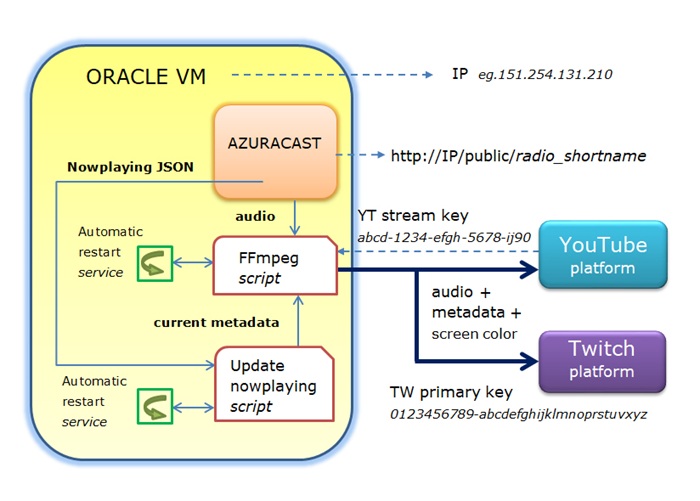
I my first VM with an Intel shape, additionally, I sent the same
broadcast signal to the Twitch streaming platform. So, the same radio program was sent to both
streaming platforms, with just a little modification of the FFmpeg script. You
can do the same if you are a Twitch user. (Or, you can stream on a second
YouTube account.)
Here are the modifications:
In the upper part of the script, add the following lines beneath the
# Replace with your YouTube stream key:
TWITCH_URL="rtmp://live.twitch.tv/app/<MyTwitchKey>"
# Replace with your Twitch primary key
Then go to the bottom of the script and insert these lines:
-c:v libx264 -preset veryfast -b:v 1500k -maxrate 3000k -bufsize 3000k -g 60
-keyint_min 60 \
-pix_fmt yuv420p \
-c:a aac -b:a 128k \
-f flv
"$TWITCH_URL" \
just before the lines
-c:v libx264 -preset veryfast -b:v 1500k -maxrate 3000k -bufsize 3000k -g 60
-keyint_min 60 \
-pix_fmt yuv420p \
-c:a aac -b:a 128k \
-f flv
"$YOUTUBE_URL"
NOTE: Do not make these changes until after you create the
youtube-relay.service(see below), which will safely restart the script.
Pre-requisites
Firstly, be sure you have curl and
jq commands installed on your system:
sudo apt install curl jq -y
Then
create a text file called nowplaying.txt in /home/ubuntu :
touch
/home/ubuntu/bin/nowplaying.txt
Create the update_nowplaying.sh script
nano /home/ubuntu/bin/update_nowplaying.sh
and paste the following code inside. Then Save and exit Nano: Press Ctrl+O → Enter → Ctrl+X.
Or Ctrl+X → Y → Enter.
If you already have a valid SSL certificate, using
https://radio.spiritus.ro is the most reliable way to connect. If you
use the IP address with https, your script might throw a "Certificate Mismatch"
error because the SSL certificate is issued to the domain, not the IP. But if
you do not have SSL, simply replace <MyIP> with your real IP.
#!/bin/bash
# Configuration. Replace <MyIP> with your real IP
and radio_spiritus with your real short name.
FFMPEG_DIR="/home/ubuntu/bin"
AZURACAST_API="http://<MyIP>/api/nowplaying/radio_spiritus"
while true;
do
# Fetch the API data
NOW_PLAYING_INFO=$(curl -sk -m 10 "$AZURACAST_API")
# Check if we got a valid response and a song ID
CURRENT_SONG_ID=$(echo
"$NOW_PLAYING_INFO" | jq -r '.now_playing.song.id')
# Only update if the
song has changed and the ID is not null
if [ "$CURRENT_SONG_ID" !=
"$LAST_SONG_ID" ] && [ "$CURRENT_SONG_ID" != "null" ]; then
echo "New song
detected. Updating metadata."
LAST_SONG_ID="$CURRENT_SONG_ID"
# Get
all the metadata
TITLE=$(echo "$NOW_PLAYING_INFO" | jq -r
'.now_playing.song.title')
ARTIST=$(echo "$NOW_PLAYING_INFO" | jq -r
'.now_playing.song.artist')
GENRE=$(echo "$NOW_PLAYING_INFO" | jq -r
'.now_playing.song.genre')
ALBUM=$(echo "$NOW_PLAYING_INFO" | jq -r
'.now_playing.song.album')
# Write metadata to a temporary file first
printf "%s \n%s \n%s \n%s \n" "$ARTIST" "$TITLE" "$GENRE" "$ALBUM" >
"$FFMPEG_DIR/temp_nowplaying.txt"
mv "$FFMPEG_DIR/temp_nowplaying.txt"
"$FFMPEG_DIR/nowplaying.txt"
fi
# Wait a bit before checking again
sleep 1
done
Code explanation:
Use curl to get the "Now Playing"
information from AzuraCast's API. This will output a block of JSON data related
to the current playing song. This info is piped to a plain text file using jq (a
command-line JSON processor).
The script verifies if the song ID has changed
and writes the relevant metadata (artist, title, genre, album) to
/home/ubuntu/nowplaying.txt file.
The drawtext FFmpeg filter will take it
from there and burn the data into the video stream sent to YouTube.
To
understand what the JSON file looks like, try this command, replacing
158.101.212.51 with your real IP:
curl -s
http://158.101.212.51/api/nowplaying/1 | jq
This command gets the complete
JSON object from the AzuraCast API, and the jq program displays it in a nice
format. The whole JSON file contains data about: the radio station, the now
playing song, the next song, and the song history.
Here is an excerpt only
showing the now-playing song data:
"now_playing": {
"sh_id": 14228,
"played_at": 1759161469,
"duration": 207,
"playlist": "default",
"streamer": "",
"is_request": false,
"song":
{
"id":
"3eecfcb79fb23f9b5e64182a95e0112b",
"art":
"http://134.98.152.181/api/station/radio_spiritus/art/18e96f5a4ae41dc070a677a1-1757951336.jpg",
"custom_fields": [],
"text": "AI lyrics - ARPEJI & AI songs - \"Hillbilly Jam
With a Cosmic Twist\"",
"artist": "AI lyrics",
"title": "\"Hillbilly Jam
With a Cosmic Twist\"",
"album": "ARPEJI & AI songs",
"genre": "(bluegrass)",
"isrc": "",
"lyrics": ""
},
"elapsed": 98,
"remaining": 109
},
From this bigger JSON file, this Metadata
script will extract only relevant data to the current song (the now_playing.song
id, artist, title, album, and genre).
NOTE: Azuracast can handle artist,
title, album, genre, and album art, which are typically displayed correctly.
Also, metadata embedded in audio files uploaded to Azuracast is generally
displayed correctly (just the aforementioned fields).
If you've already installed the Let's Encrypt SSL
certificate, the command should look like this to work (add the http
custom port):
curl -s
http://158.101.212.51/api/nowplaying/1 | jq
or like this:
curl -s
http://localhost:8000/api/nowplaying/1 | jq
After saving start_stream.sh and update_nowplaying.sh in the
/home/ubuntu/bin directory, make them executable:
chmod +x start_stream.sh
chmod +x update_nowplaying.sh
The streaming FFmpeg command will
now run until you end your SSH session. To make it run constantly in the
background, you'll need to use a systemd service. This way, the script runs
automatically on VM boot. Continue reading.
●
Create a new service file to control start_stream.sh:
sudo nano
/etc/systemd/system/youtube-relay.service
Paste this inside:
[Unit]
Description=FFmpeg to YouTube Relay Service
After=network.target
[Service]
ExecStart=/home/ubuntu/bin/start_stream.sh
User=ubuntu
Group=ubuntu
Restart=always
RestartSec=10
StandardOutput=journal
StandardError=journal
[Install]
WantedBy=multi-user.target
Save and exit Nano (Ctrl+X, Y, Enter)
● Enable and start it
sudo
systemctl daemon-reload
sudo systemctl enable youtube-relay
sudo systemctl
start youtube-relay
● Check
status
systemctl status youtube-relay
This command
will show you whether the service is active (running), if it's been enabled, and
recent log entries to help you with troubleshooting. Example:
ubuntu@arpeji-ji:~/bin$
sudo systemctl status youtube-relay.service
● youtube-relay.service - FFmpeg
to YouTube Relay Service
Loaded: loaded
(/etc/systemd/system/youtube-relay.service; enabled; preset: enabled)
Active:
active (running) since Thu 2025-09-25 08:45:56 UTC; 1 day 8h ago
Main PID:
1176584 (start_stream.sh)
Tasks: 26 (limit: 19060)
Memory: 239.8M (peak:
240.6M)
CPU: 17h 21min 191ms
CGroup: /system.slice/youtube-relay.service
└─1176584 /bin/bash /home/ubuntu/bin/start_stream.sh
└─1176585
/usr/bin/ffmpeg -re -i http://134.98.152.181/listen/radio_spiritus/radio.mp3 -f
lavfi -i color=c>
If something goes wrong, check logs:
journalctl -u
youtube-relay -f
● Restart the stream (stop+start)
sudo systemctl
restart youtube-relay.service
It is absolutely necessary to restart the service after modifying the
start_stream.sh script, but stopping it first is not strictly required.
The youtube-relay.service is configured to run the
/home/ubuntu/bin/start_stream.sh script. When a systemd service
like this is running, it
keeps a copy of the script's code in memory for the currently running process.
If you edit the file on disk:
- The running process continues to execute the old, unedited code.
- The new,
modified code is just sitting on the disk.
To make the system use the new code, you must tell the systemd service to
stop the old process and launch a new one, which will read the modified script.
The above command performs the necessary steps:
- It sends a signal to the currently running process (the old
start_stream.sh
instance) to shut down.
- Once the old process is terminated, it executes the
new command (
/home/ubuntu/bin/start_stream.sh), which reads the latest version
of the script from disk.
Important: After you modify the service itself, you must run sudo systemctl daemon-reload
You may need to 'stop' the service, prior to 'disable':
● Stop the main stream
sudo systemctl stop
youtube-relay.service
sudo systemctl disable
youtube-relay.service
Proceed similarly by creating another service that controls
update_nowplaying.sh
sudo nano
/etc/systemd/system/youtube-nowplaying.service
Paste this inside:
[Unit]
Description=YouTube Now Playing Updater Service
After=network.target
[Service]
ExecStart=/home/ubuntu/bin/update_nowplaying.sh
User=ubuntu
Group=ubuntu
Restart=always
RestartSec=3s
StandardOutput=journal
StandardError=journal
[Install]
WantedBy=multi-user.target
Save and exit Nano (Ctrl+X, Y, Enter)
● Enable
and start it
sudo systemctl daemon-reload
sudo systemctl enable
youtube-nowplaying.service
sudo systemctl start youtube-nowplaying.service
● Check status
See if it’s running:
systemctl status
youtube-nowplaying
This command will show you whether the service is active
(running), if it's been enabled, and recent log entries to help you with
troubleshooting.
If something goes wrong, check logs:
journalctl -u
youtube-nowplaying -f
Other commands you may need:
● Restart the stream (stop+start)
sudo
systemctl restart youtube-nowplaying.service
This command is necessary after you modify the update_nowplaying.sh script.
But if you modify the service itself, you must run sudo systemctl daemon-reload
● Stop the main stream and disable it
sudo systemctl stop
youtube-nowplaying.service
sudo systemctl disable
youtube-nowplaying.service
systemd: The Daemon
The d in systemd is a common abbreviation
for daemon. A daemon is a background process that runs on a system to perform a
specific task, like managing services, logging, or handling network requests.
systemd is the central daemon that runs from the moment the operating system
starts to manage all other daemons and services on the system.
systemctl: The
Control Utility
The ctl in systemctl is a common abbreviation for
control.
systemctl is a command-line utility that you, as a user, use to send commands to
the systemd daemon. You can't directly talk to systemd; you have to use a tool
to do so. systemctl is that tool.
Here is a breakdown of what each command
does:
sudo systemctl daemon-reload
This command tells the systemd
daemon to reload its configuration files. You need to run this command after you
have created or modified a .service file (like youtube-relay.service). This
ensures that systemd is aware of your new service and its settings before you
try to start it.
sudo systemctl enable youtube-relay
This command
enables your service. When a service is enabled, it means it will automatically
start every time your VM reboots. This is an important step for ensuring your
YouTube relay runs permanently without needing to be started manually after
every system restart.
sudo systemctl start youtube-relay
This command
starts your service immediately. It is a one-time command that activates the
service for the current session. You would use this to get the overlay script
running right after you've created and enabled it.
sudo systemctl restart
youtube-relay
Used in troubleshooting. For example, when the YouTube relay is
not working, although the radio station is running, use both commands, in this
correct order (the consumer before the producer of the input):
sudo systemctl restart youtube-relay.service
sudo systemctl restart youtube-nowplaying.service
TIP: You may sometimes even need to
reboot the system to clear the cache.
sudo reboot
• Check if FFMPEG has started:
pgrep -f "ffmpeg"
It should show the number of the FFmpeg process, something like this:
ubuntu@arpejiSSL:~/bin$ pgrep -f "ffmpeg"
81285
• You can also check if the scripts are
running by using the ps aux | grep command:
ps aux | grep start_stream.sh
ps aux | grep update_nowplaying.sh
It should show two lines containing the name of each script, something like
this:
ubuntu@arpejiSSL:~/bin$ ps aux | grep start_stream.sh
ubuntu 81284 0.0 0.0
7452 3148 ? Ss 08:15 0:00 /bin/bash /home/ubuntu/bin/start_stream.sh
ubuntu
81903 0.0 0.0 6684 1920 pts/0 S+ 08:17 0:00 grep --color=auto start_stream.sh
ubuntu@arpejiSSL:~/bin$ ps aux | grep update_nowplaying.sh
ubuntu 79592 0.0
0.0 7568 3048 ? Ss 08:11 0:00 /bin/bash /home/ubuntu/bin/update_nowplaying.sh
ubuntu 82526 0.0 0.0 6688 1860 pts/0 S+ 08:19 0:00 grep --color=auto
update_nowplaying.sh
Next chapter:
Keep Your VM from Being Reclaimed as Idle >