 Creating
a new, smaller AMD VM (experimental) Switching
to a PAY-AS-YOU-GO plan Setting up a more powerful Ampere VM Deleting
an old VCN
Creating
a new, smaller AMD VM (experimental) Switching
to a PAY-AS-YOU-GO plan Setting up a more powerful Ampere VM Deleting
an old VCN< Prev. |
Next > |
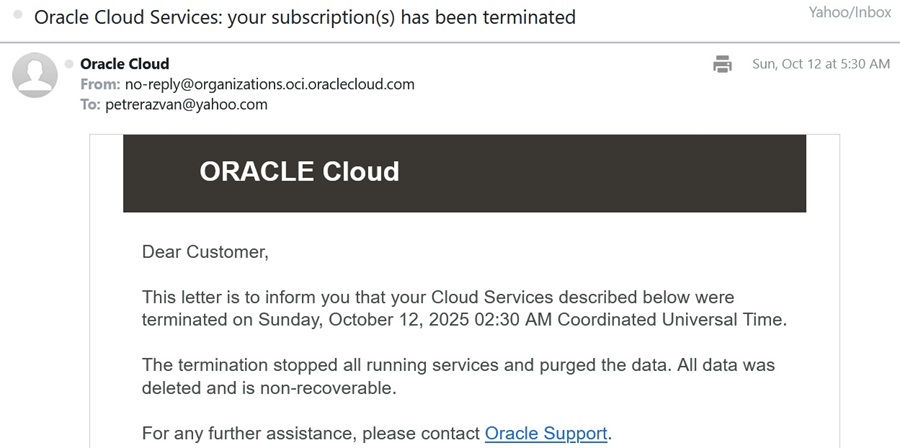
Oracle terminated
my Free Tier VM after 60 days Creating
a new, smaller AMD VM (experimental) Switching
to a PAY-AS-YOU-GO plan Setting up a more powerful Ampere VM Deleting
an old VCN
This update covers critical changes introduced by Oracle in October 2025 affecting the Free Tier’s lifetime, limitations, and resource policies.
New Policy: Oracle Free Tier VMs may now terminate automatically after 60 days, regardless of usage levels.
Affected Users: All Free Tier accounts created before October 2025.
Solution: To prevent service interruption, upgrade to Pay-As-You-Go and maintain consistent CPU utilization.
Unexpectedly, Oracle terminated my Virtual Machine (Intel VM.Standard3.Flex)
after 60 days since creating my Oracle Free Tier account . Oracle has firmly stated that "the Always Free services are
available for an unlimited period of time". This is only true with a
"Pay as you go" account, as of October 2025.
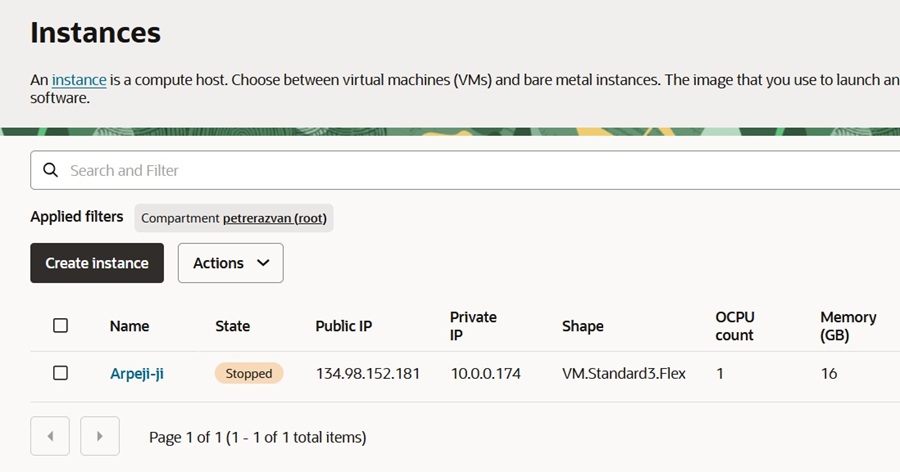
After Oracle terminated my VM, I logged in to my account and found that the VM was STOPPED.
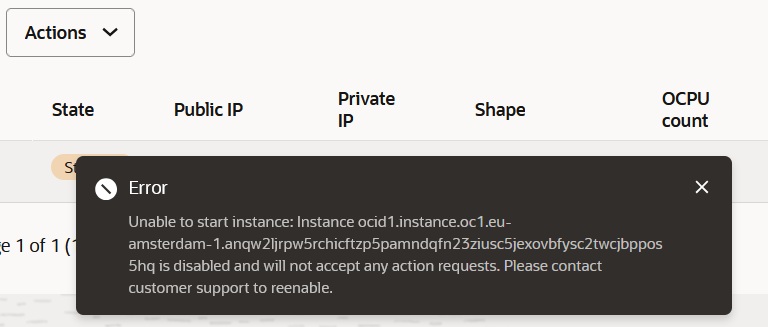
I tried to start it, but an error message clearly stated that the instance is disabled.
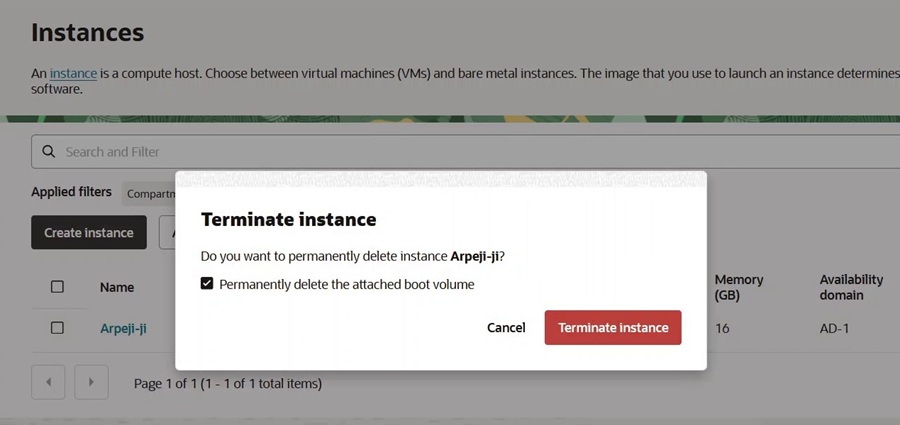
Finally, I clicked on ‘Terminate’ instance. I also ticked 'delete the attached boot volume'.
Then I went to Storage > Boot Volumes and verified that the Boot volume is terminated.
Also, went to Storage > Boot Volume Backups and manually terminated the old VM backup.

So, I've got rid of all the leftovers...
The Block volume of 50 GB is still available. The Object Storage bucket is still available.
The Virtual Cloud Network and Subnet are still functional, so I don’t have to make the Ingress Rules again.

As for October 2025, unfortunately, the only shape available within the Free Tier for my Canonical Ubuntu 24 minimal image is the AMD Standard E2.1 Micro shape. It is clearly a big limitation for my project. The AMD E2.1.Micro shape has only 1 GB of memory and 0,48 Gbps network bandwidth. So, I'll have to make at least the following changes to the project:
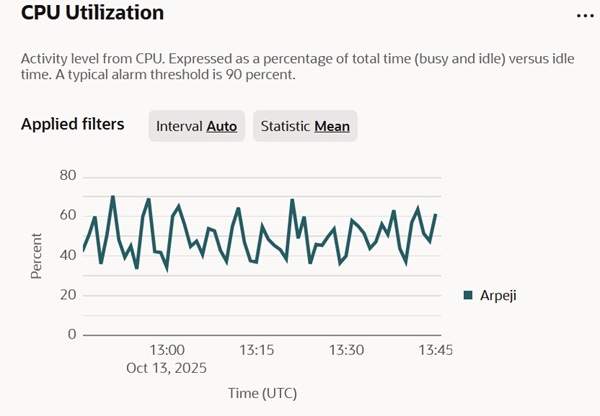
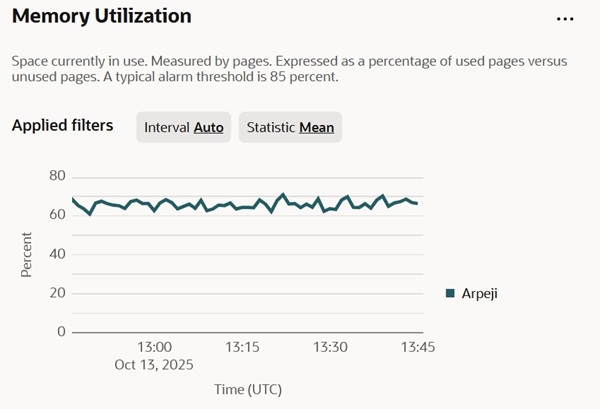
After creating the AMD E2.1 Virtual Machine and installing the AzuraCast software, the Oracle Monitoring Tools (Instance > Monitoring tab) show a high percent utilization of the CPU (a mean of 30%, but sometimes even reaching 60%) – because the AMD shape is much smaller (1/8) than the Intel shape – and a memory intense utilization (65%, with spikes at the software restart).
By monitoring the memory activity with the free -h command,
the fact that my Swap is constantly at 40% utilized is the key indicator
of a performance problem, and it confirms that 1 GB of RAM is insufficient for
my workload (likely AzuraCast). That is, 800 MB of application data that
has been pushed out of my fast physical RAM and onto the slow hard drive/SSD.
Any application that needs to access this 800 MB of data will experience a
massive delay, leading to system slowdowns and sluggishness!
My server is in a state of chronic memory pressure because 1GB of RAM is not enough for my persistent workload. The best and most permanent solution is to increase the physical RAM.
But before anything else, I will first try to make the Traffic Script to see if it can be supported by the current system.
Although I have modified the Traffic script for maximum traffic (SLEEP_TIME=0, so the download loop runs back-to-back), the Monitoring Tool shows that my AMD E2.1 shape does not allow for more than 6MB per second network traffic.
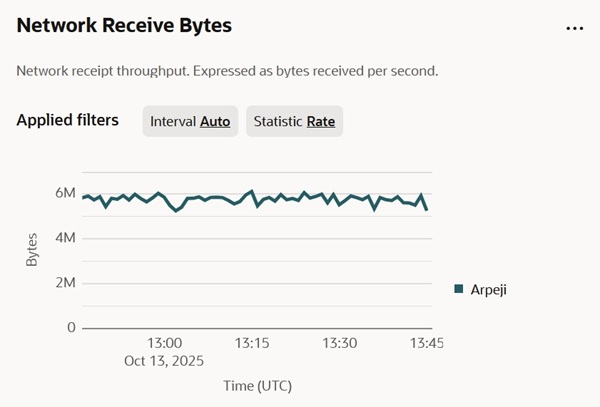
NOTE: Multiple sources confirm that the maximum public Internet bandwidth for the
VM.Standard.E2.1.Micro instance is capped at 480 Mbps internal, but significantly
lower for external traffic. The most common and frequently cited limit for
external traffic is 50 Mbps (which is ≈6.25 MB/s).
Conclusion: This problem does not have a solution within the "Free Tier" account! Even if I chose the Canonical Ubuntu 24.04 full image with a more powerful Ampere shape, the Free Tier will still be available for only one month, after which Oracle will terminate my VM again.
The permanent solution is to upgrade to a "Pay as you go" account, where the Idle Policy might apply only for non-meeting all three conditions simultaneously (CPU, RAM, network), and I can choose a bigger shape, an Ampere A1 Flex with 1 OCPU and 6 GB of RAM. That will suffice for my radio station project.
Anyway, this was just an experiment to see if such a small AMD E2.1 Micro shape could sustain my project. And, in principle, yes, it can for the radio station only (without restreaming to YouTube), but struggling hard with occasional "hiccups".
• Your usage for the first 4 OCPUs and 24 GB of RAM on the Ampere A1 shape will still be billed at $0.00.
• As long as your usage stays within the "Always Free" limits, you will have a $0.00 bill.
• By providing a payment method and converting to PAYG, you are, generally speaking, no longer subject to the idle reclamation policy for those "Always Free" resources. The PAYG status signals to Oracle that you are a commitment-ready customer and you gain peace of mind that your running AzuraCast instance will not be automatically stopped for a lack of activity.
In the main menu, go to "Billing & Cost Management", then click on the "Upgrade and Manage Payment" link. You'll see your Plan type: Free Tier. Scroll down to the 'Pay As You Go' box and click the "Upgrade your account" button.
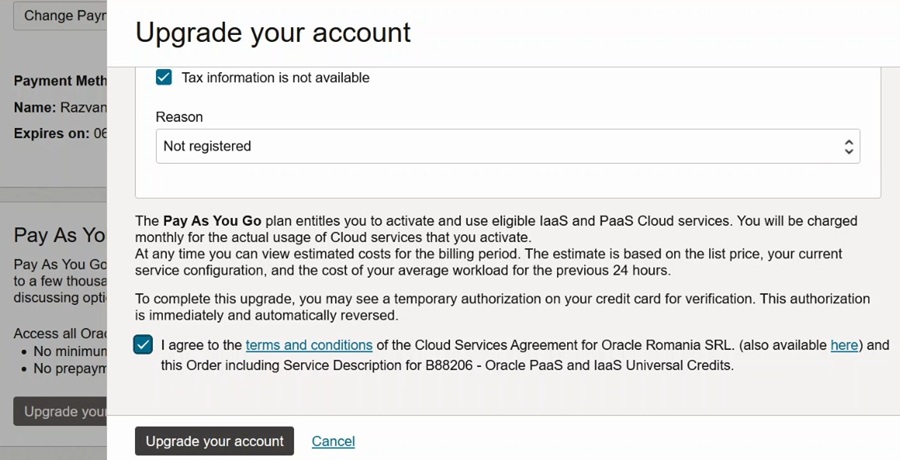
As an Individual, tick "Tax information is not available" for the reason "Not registered". Also tick "I agree to the terms and conditions...", then click the "Upgrade your account" button.
A new window will appear with your credit card info, and then you will confirm the payment in your online bank account.
IMPORTANT: No payment will be registered in your bank reports (as of October 2025). Oracle only needs a confirmation that you have a small amount of money ($100) in your bank account.
As a "Pay As You Go" user, the Oracle Cloud Infrastructure let me choose between AMD, Intel, and Ampere shapes — and that is somehow a trap. Intel is not listed as an "Always Free" service, while AMD's E4 and E5 shapes are also paid. The only configuration listed that is guaranteed to be free is the Ampere A1 Flex instance. You get 4 OCPUs and 24 GB of RAM per month in the "Always Free" tier.
Yet, the OCI only let me provision 1 OCPU for the Ampere shape (perhaps due to regional capacity limits), with 6 GB of RAM, without the old option to choose a bigger size (e.g., 2 OCPUs and 16 GB of RAM).
NOTE: Also, resizing the Ampere A1 Flex shape to a bigger size after creation is not possible anymore (due to lack of Oracle resources, I suppose).
For now, I can run an Ampere A1 Flex instance alongside my pre-existing AMD E2.1.Micro instance without exceeding the "Always Free" limits, provided I carefully manage the total resource consumption, especially the storage.
I will be using the following total resources, all of which are within the "Always Free" limits:
The AMD E2.1.Micro instance is very limited (it has 1/8th of an OCPU and 1 GB of RAM), so the Ampere A1 instance will be significantly more powerful for running my radio station. I am much better off running the radio station on the Ampere A1 instance and keeping the AMD Micro for something extremely lightweight, if I need it at all.
After creating the Ampere ARM-based shape with a Canonical Ubuntu, I terminated the AMD micro shaped VM.
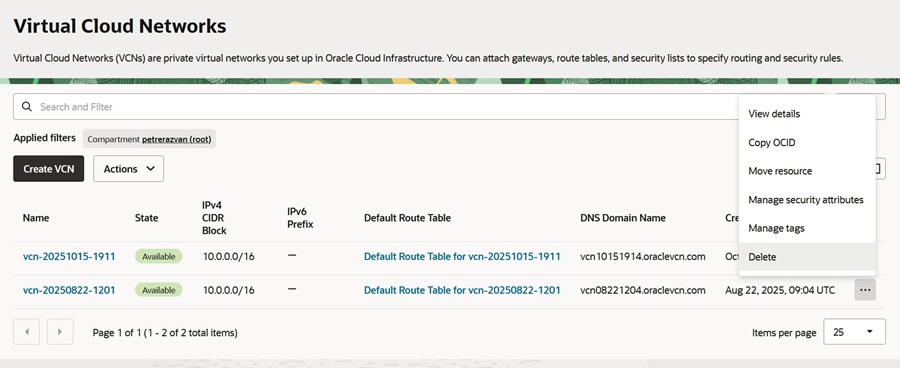
And here is a catch. When creating the Ampere shape I chose to create a new VCN. And so I got 2 VCNs now. Up to two VCNs are typically available in the "Always Free" tier. So I decided to delete the older VCN, although that was not mandatory for the moment. There are a few steps before you can terminate the VCN, which I'll describe below.
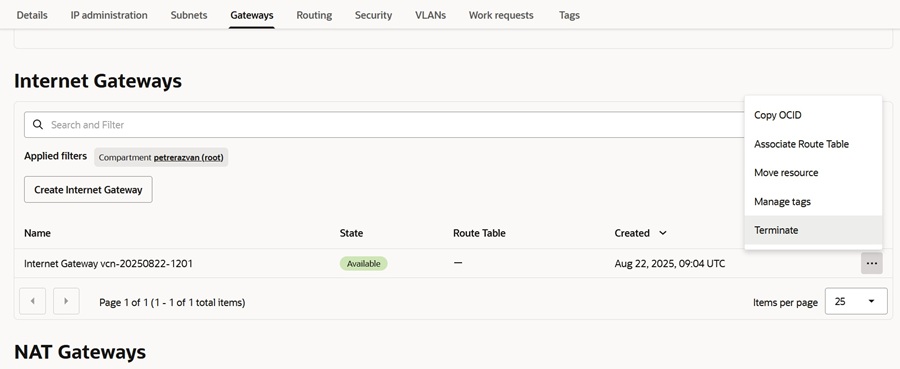
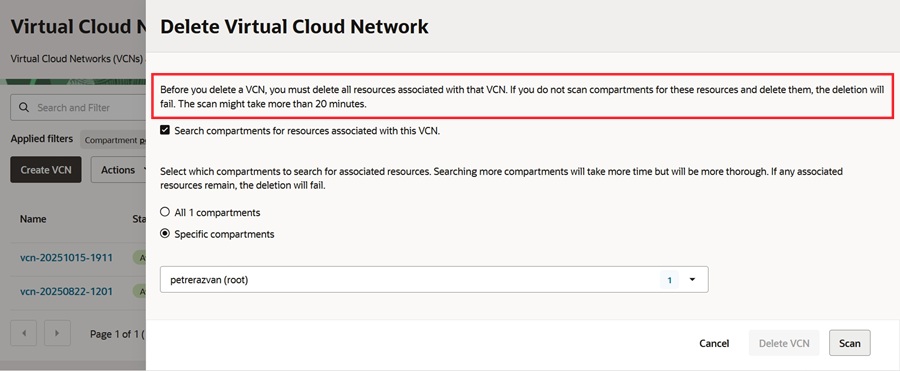
Go into the details of the VCN that you want to delete and systematically delete all of its components — starting with any subnets, Internet Gateway — until the VCN itself is empty. Once it is empty, the "Terminate" button will work.
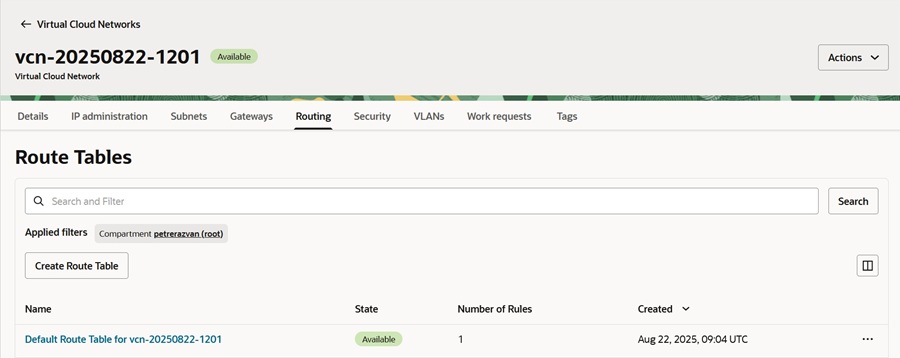
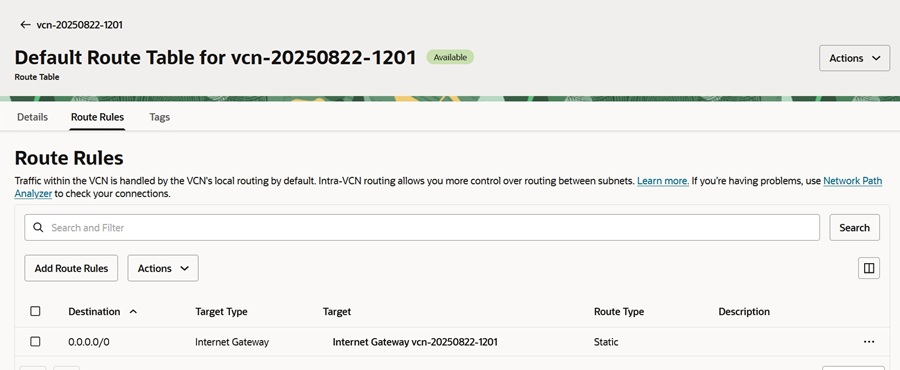
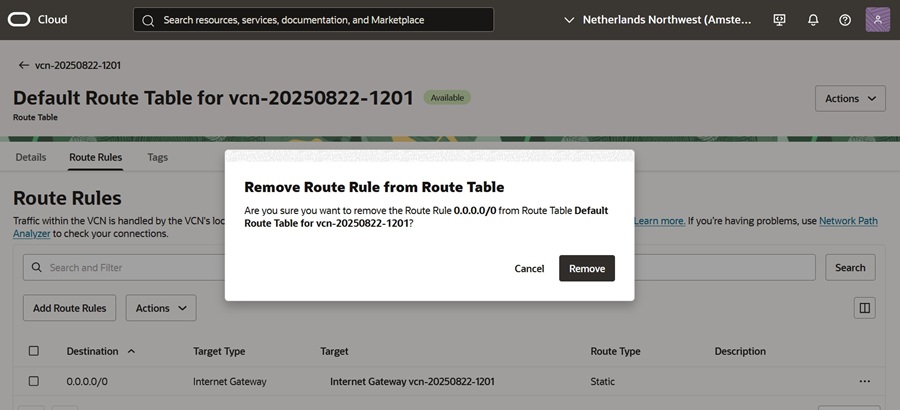
To remove the Internet Gateway, go in the VCN details, Route tab, and remove the reference to the Internet Gateway. Then re-attempt the Internet Gateway deletion.
After deleting the Subnet and the Route Tables (they may be deleted automatically once empty), finally, go back to the VCN Details page and Terminate the VCN.
The screnshots below are self-explanatory...
Next chapter: Preparing for the Radio Station Installation >